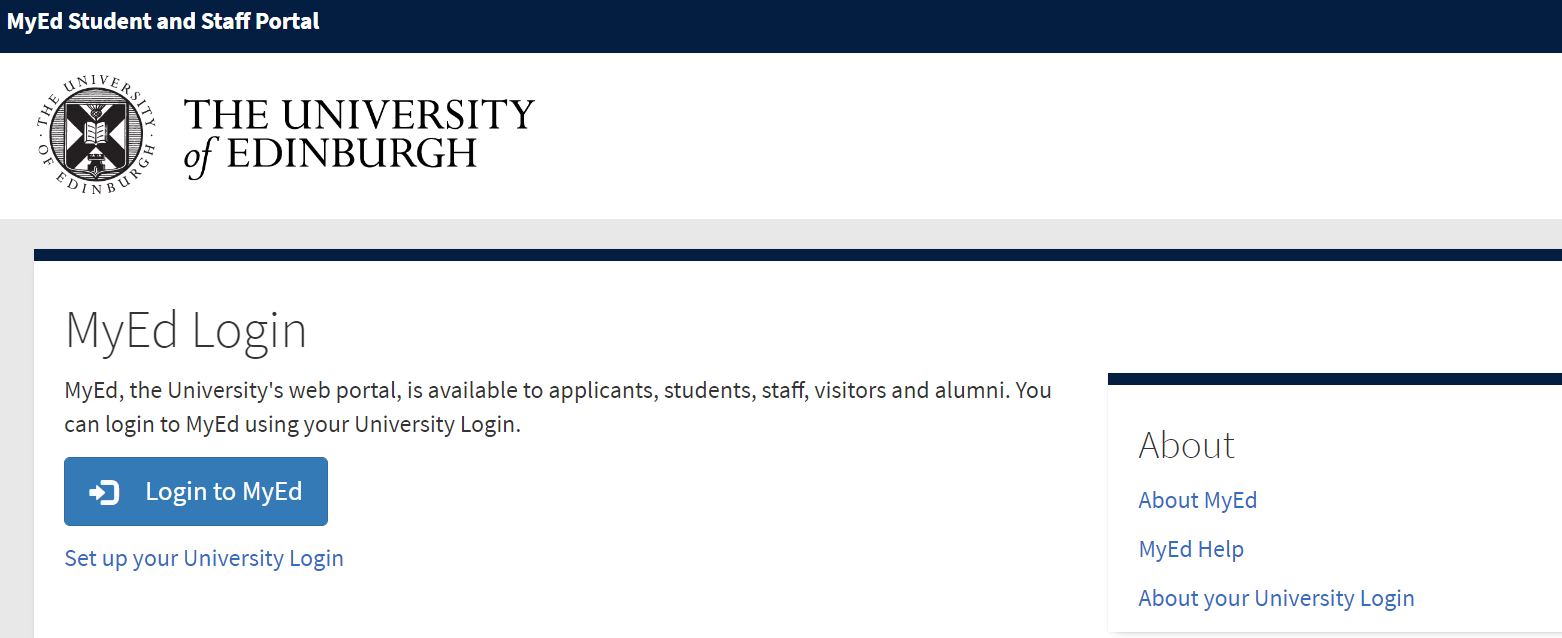
First, you will need to log in through MyEd:
Then you will see the following page:
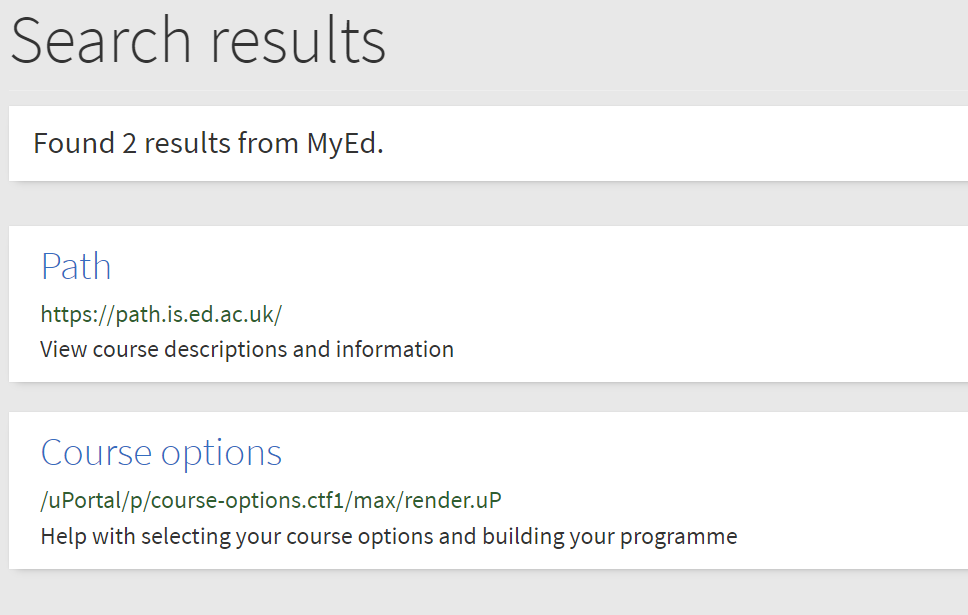
Once logged in through MyEd, you can use the search bar to find Path.
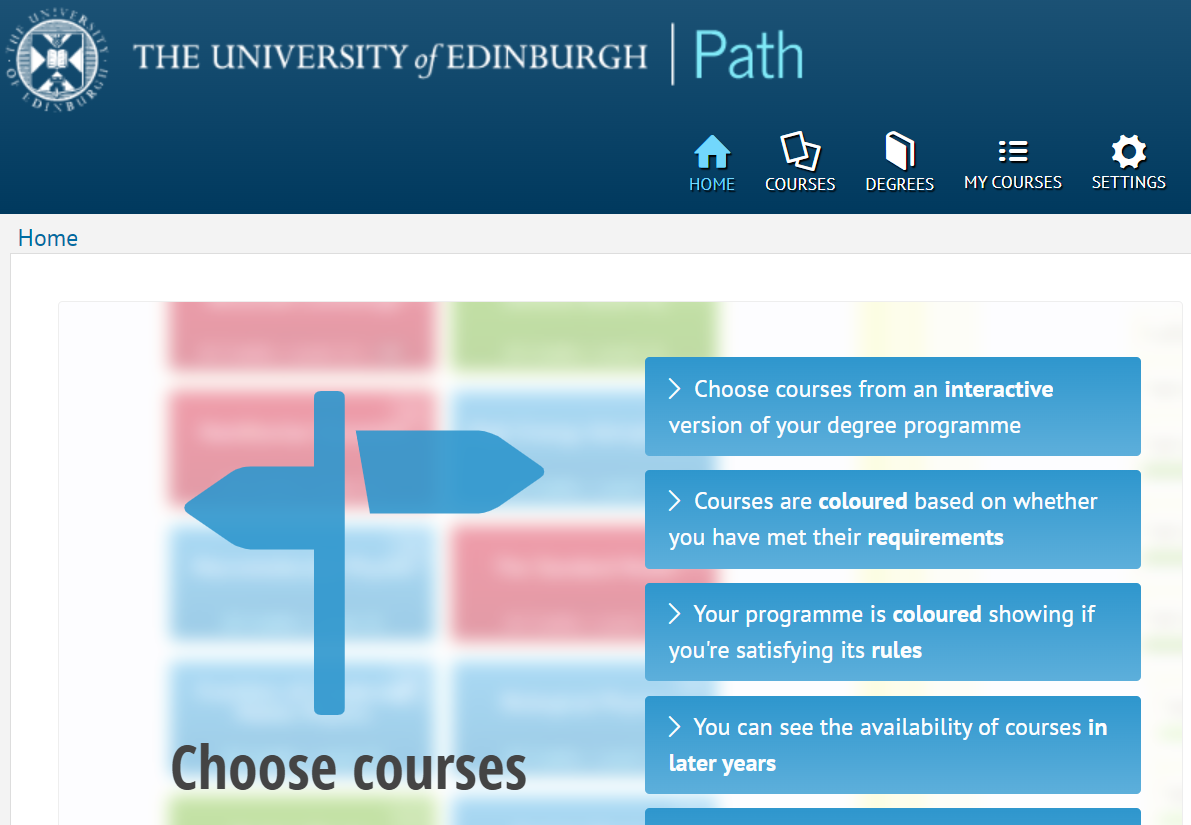
Click on the first link and it will take you to the Path homepage:
To begin your course selection, you must use the 'programme builder' tool at the bottom of the blue list:
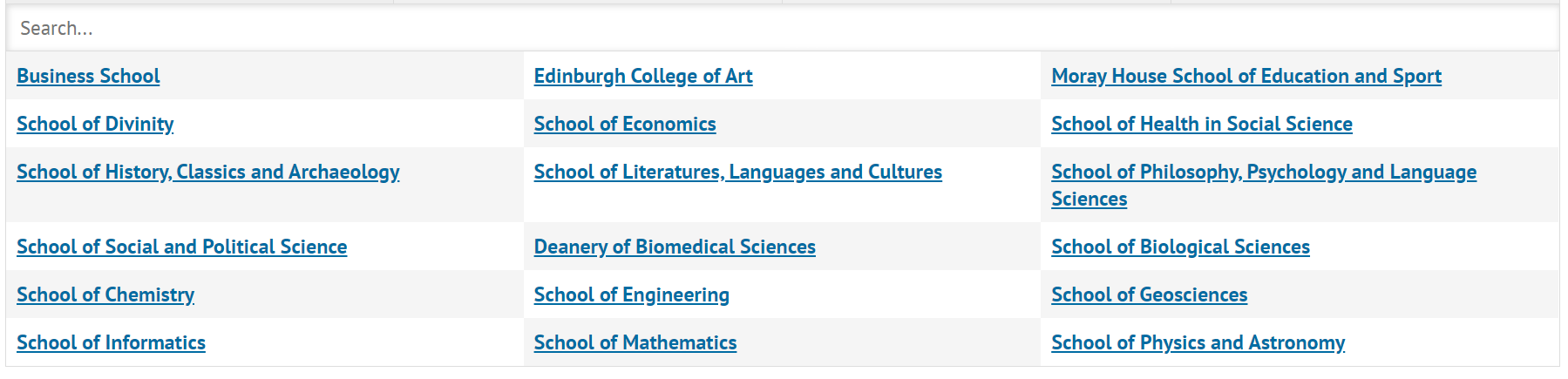
Then click on the Business School, the first school listed on the left:
And then select your particular degree from the list:
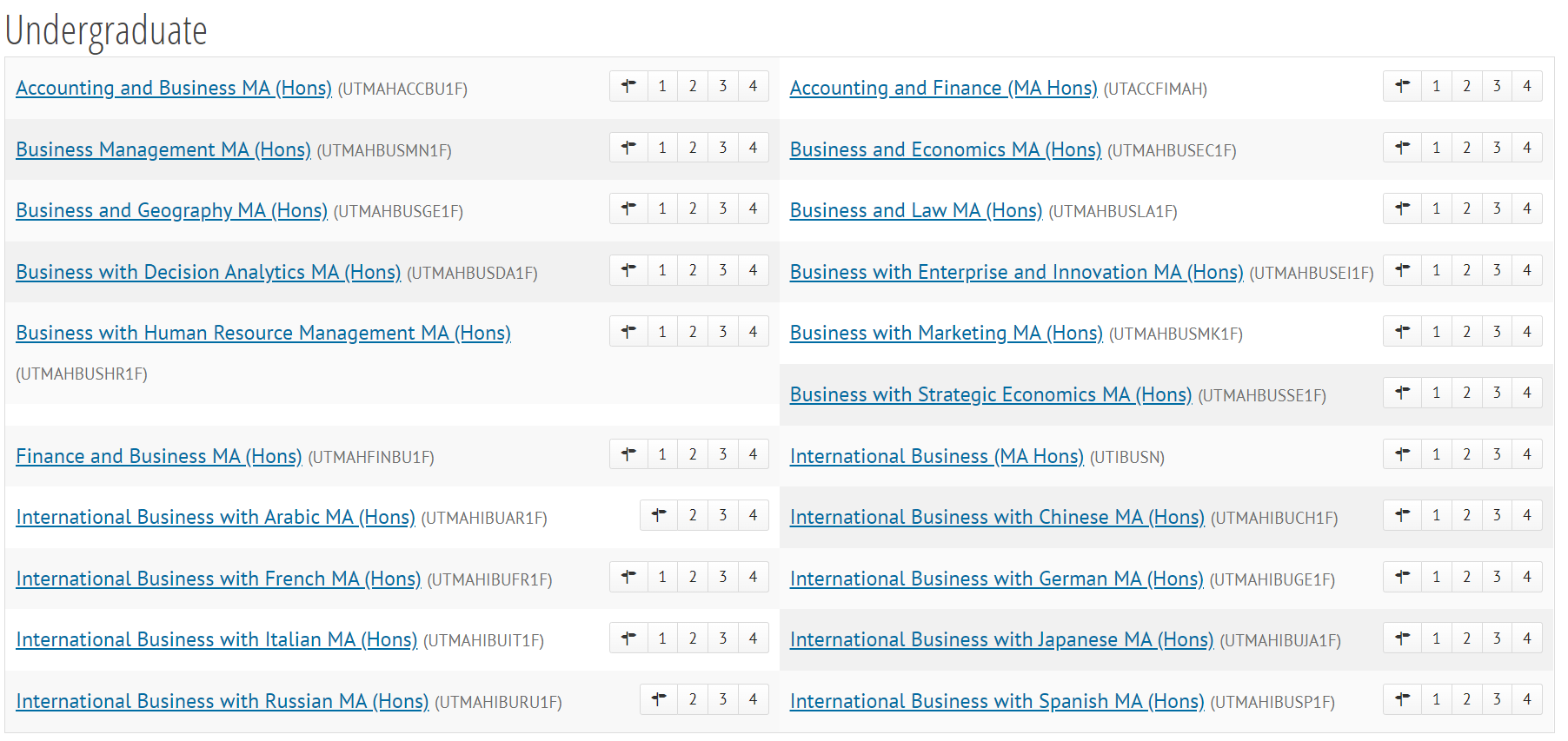
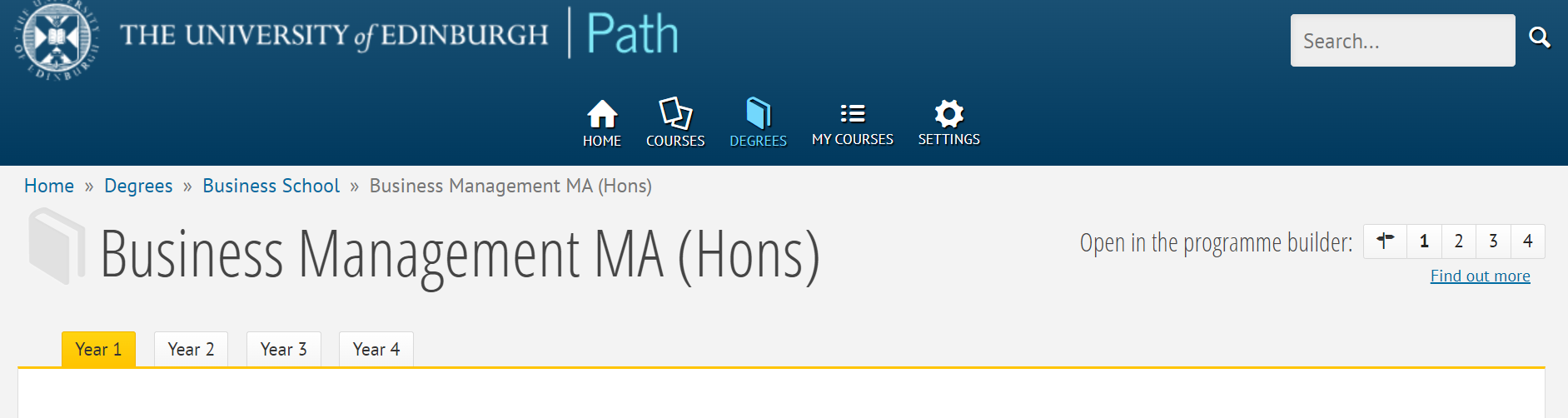
Select '1' next to 'Open in the programme builder'. We are using an example from the Business Management degree.
Path uses a colour coding system to indicate which courses you can take and if you are meeting your programme criteria as per the programme and course information on the DRPS. You can change any of the colours in the "settings" tab if you have a preference.
Your core courses will already be there in Green:
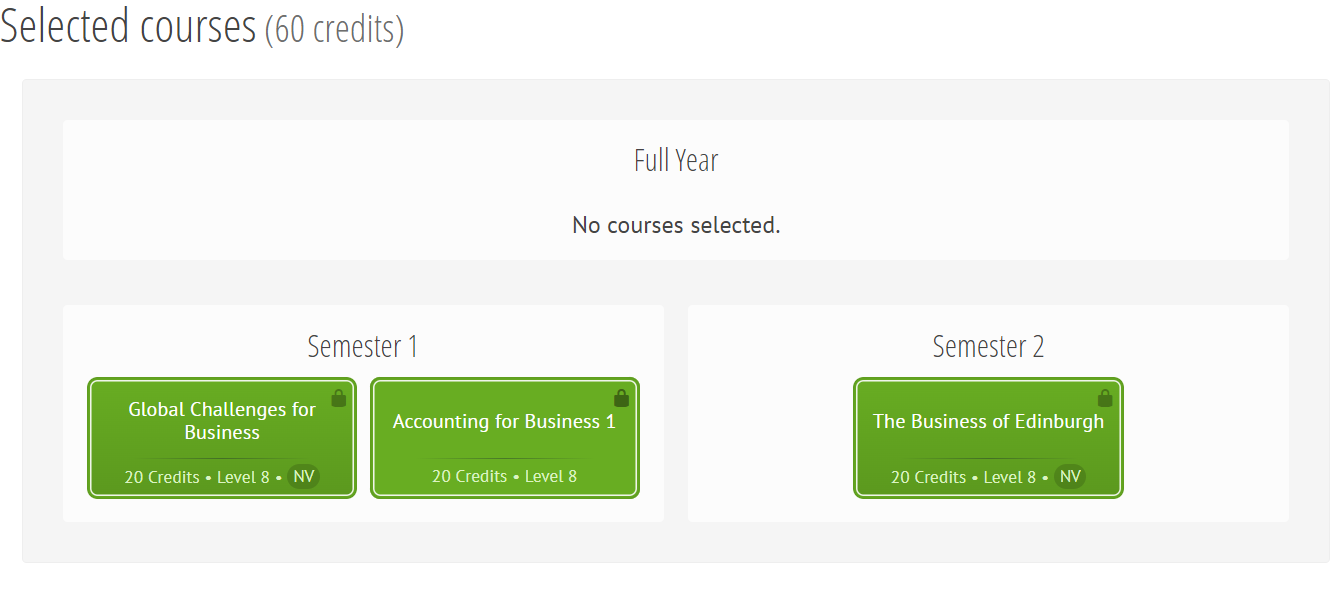
PATH uses information from your student record so it knows which courses you have to take and to inform you that you meet the pre- or co-requisites for any courses that you choose.
Courses you will be able to select will appear in Blue and those you cannot select will be in Red. If you hover your cursor over the red course, it should give a brief description of why you cannot select this option. Clicking on the course and going in to 'requirements' will provide you with further details. You can find out details about each course by clicking on the course: course syllabus, assessment structure, lectures, pre-requisite requirements.
Depending on your degree, you will be able to choose up to 3 options, and you can select these from the Blue boxes in A1.
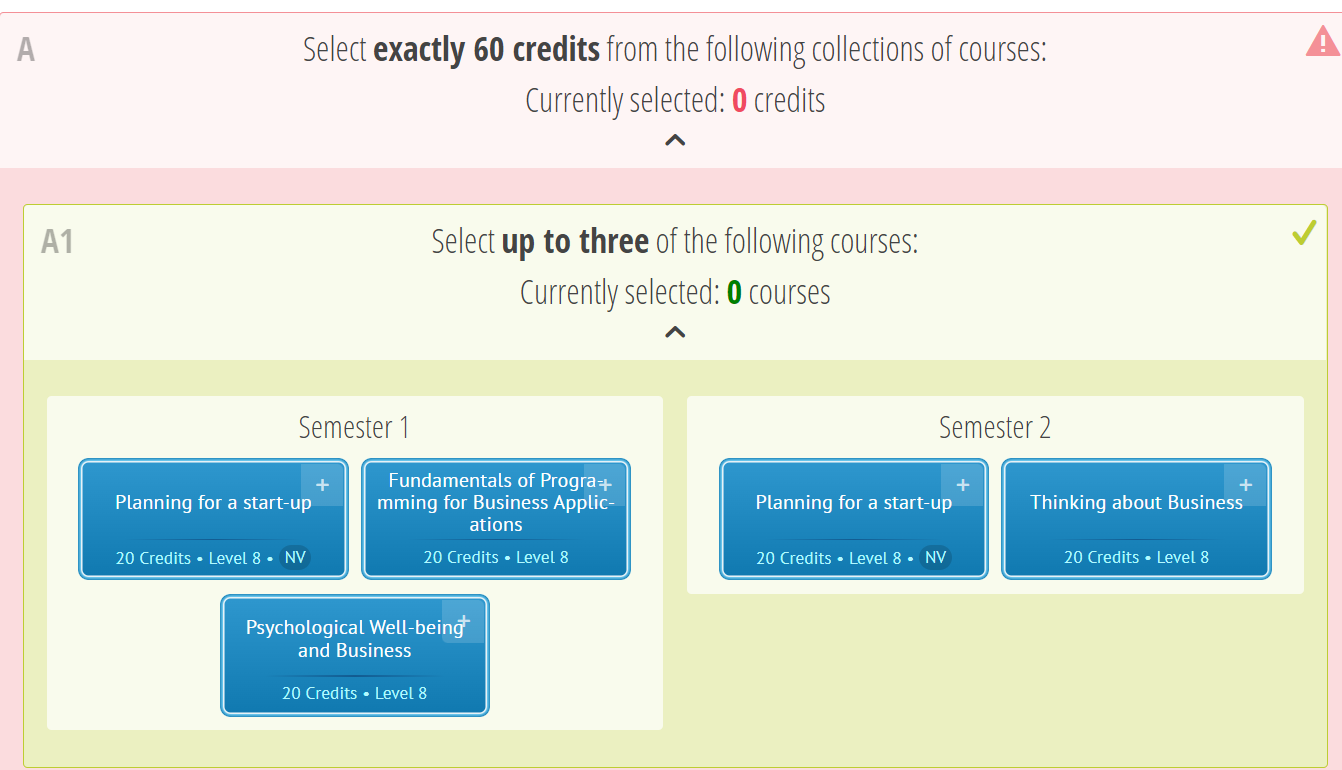
You will use the search function in A2:
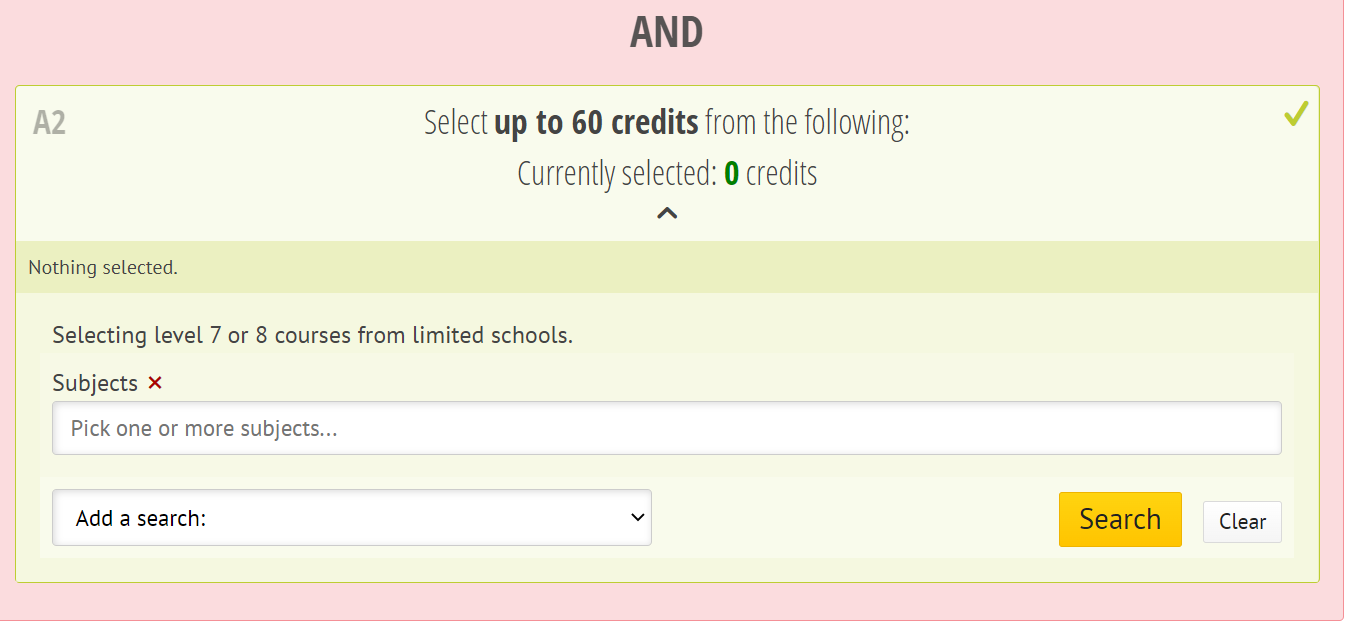
You can choose all 3 of your options from the A1 box, or all from A2, or a mix of the two.
When selecting option courses from box A2, it is very important that you read the accompanying guidance and review the Excel spreadsheet that can be found, as this will tell you exactly which options are available to you and which ones are not:
Choosing option courses in Year 1
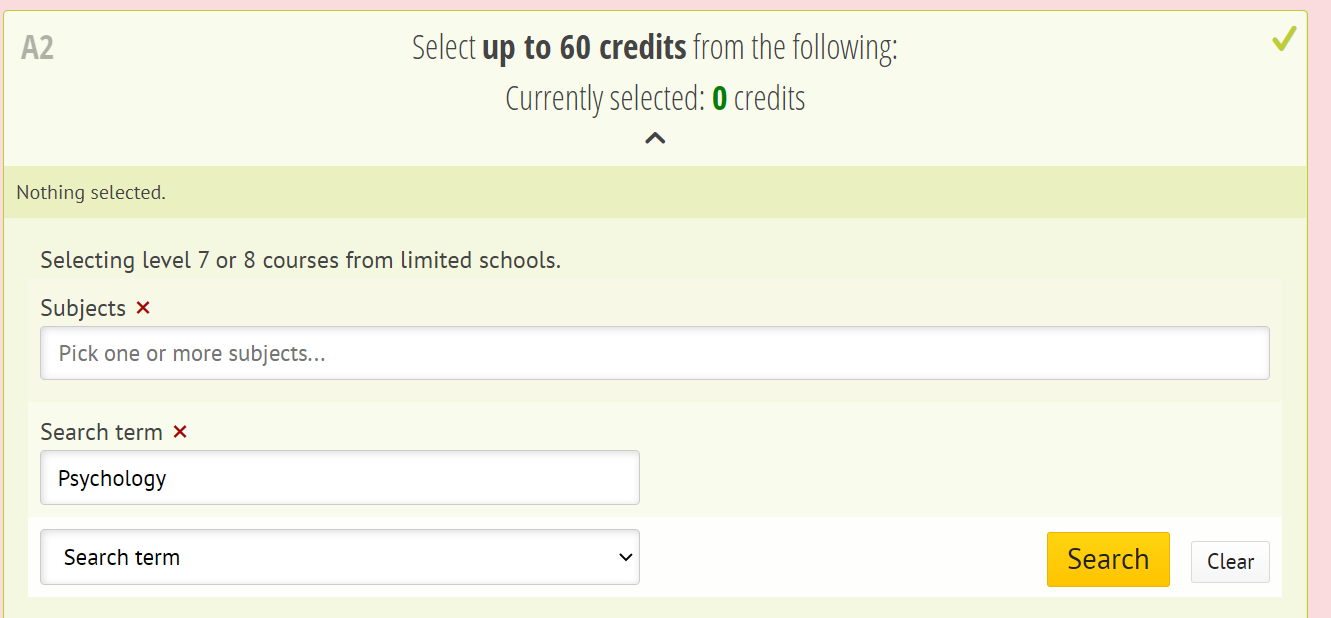
Once you have decided which options you would like to take, click on 'Add a search' and then 'Search term', and type in a subject or course name and click 'Search'. In this case we have used the example of Psychology:
On clicking search, the following courses are now listed:
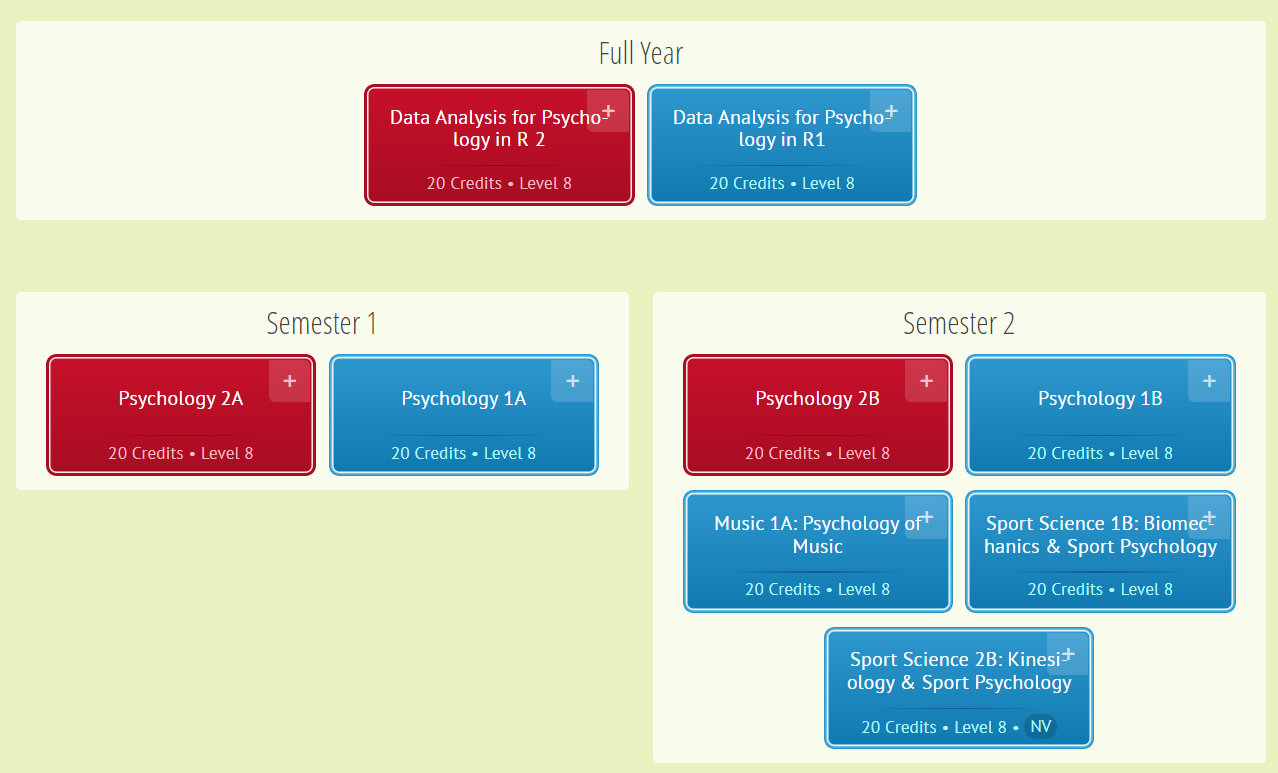
Remember you can only choose courses that are in Blue. If you click on a course you will get more information on what it entails. This will open up as a pop-up so just close it with the X at the top left of the pop-up. If you try to click 'back' you will come out of the programme builder and have to start again.
When you want to make a selection, just click on the + sign in the corner of the course you wish to take, and it will turn Green.
Not only can you use the 'Add a search' function for subjects you feel would either complement your programme or personal interest, you can add layers to your search function such as assessment type; for example, you may prefer 100% coursework rather than coursework and an exam.
We recommend you play around with this function to find the best options but be advised, the further you 'drill down' in your search criteria, the fewer results you will get back. You could therefore miss out on a course option that you might have enjoyed because it was slightly outside of your parameters.
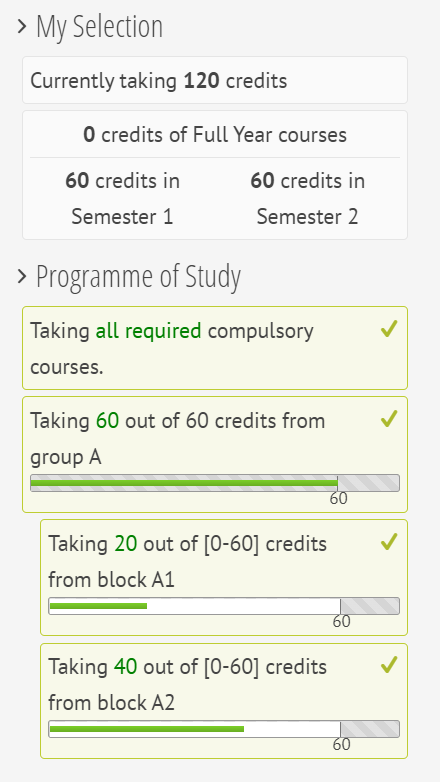
When selecting your course options you will notice some progression bars on the right-hand side. Your aim is to select sufficient courses for each of these bars so they become green, indicating you have made enough choices to meet your programme requirements for the year, as indicated in the image.
Once you have completed your course selection, please click the 'Send selection to...' button to submit your options. All submissions will be processed after the deadline. The Student Support Team will normally enrol you on your course options, however you may wish to meet with your student adviser for academic guidance.
Changing your selection
You can change your selection that you submitted previously by updating the course choice in the builder and clicking the 'Send selection to...' button again. Sending a new selection will overwrite the previous version; you can only have one selection at a time. The most recent selection will be visible to the Student Support Team.
Deleting the selection
If you submit a selection in error, you can remove it. On the builder you should see a 'Last sent' button which will open the selection in a new tab. In this preview, there is a button inviting you to 'Delete this selection'.